

Rec0m88
The Ultimate Retro Gaming Emulator with seamless Netplay. Rediscover the classics on Windows, macOS, and Linux.
Je OS detecteren...Why Choose Rec0m88?
Built for gamers, by gamers. Experience retro gaming like never before.
Naadloos samenspel
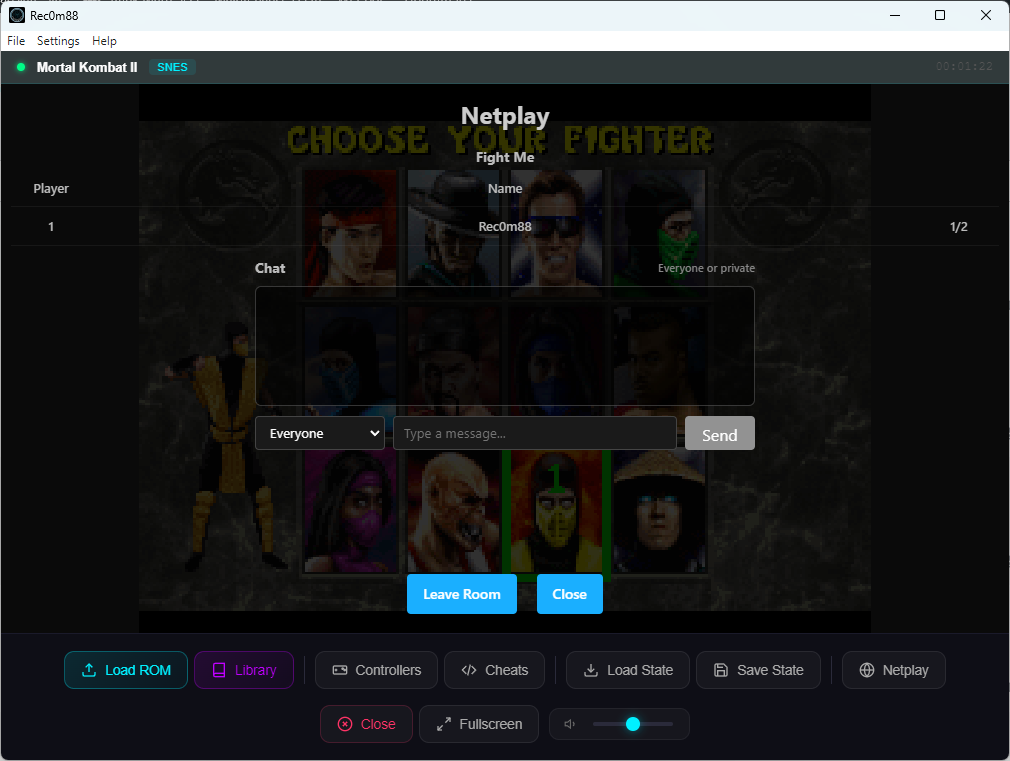
Connect with friends and relive your favorite multiplayer games online with our simple and secure netplay server.
Note: For netplay to work, all players must be using the exact same game file.
Staten opslaan en laden
Never lose your progress again. Instantly save your exact spot in any game and load it back up anytime.
Platformoverschrijdend
Built for everyone. Enjoy the same great experience whether you’re on Windows, macOS, or Linux.
Supported Systems
18 classic consoles, one powerful emulator.
Game Library Manager
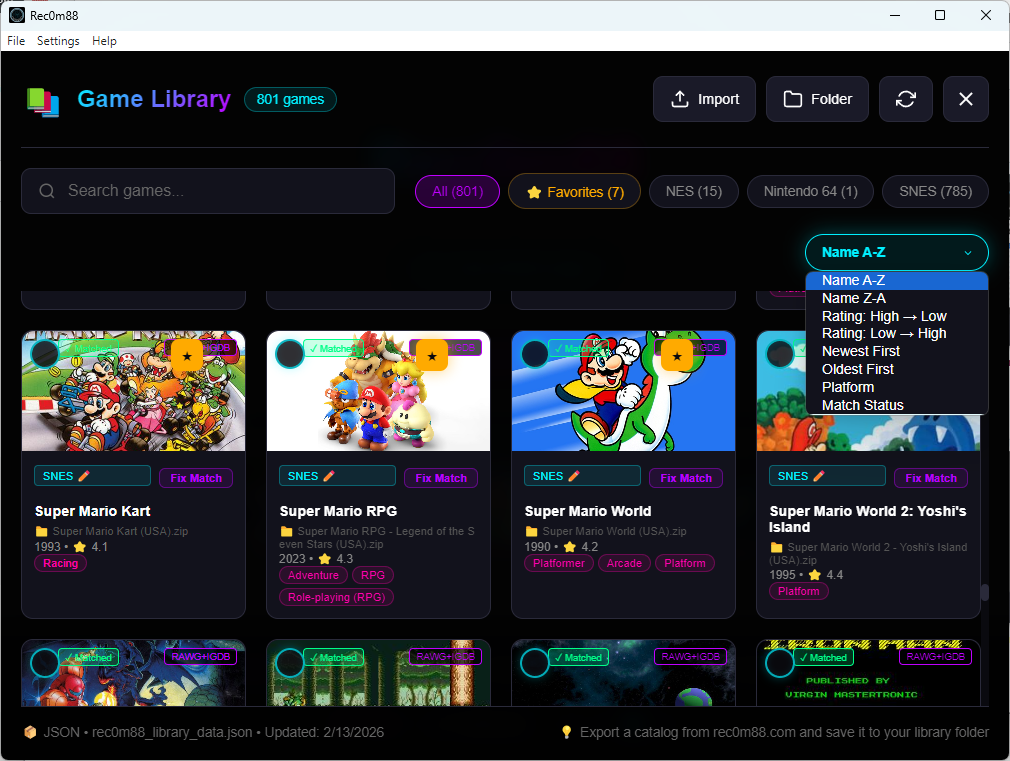
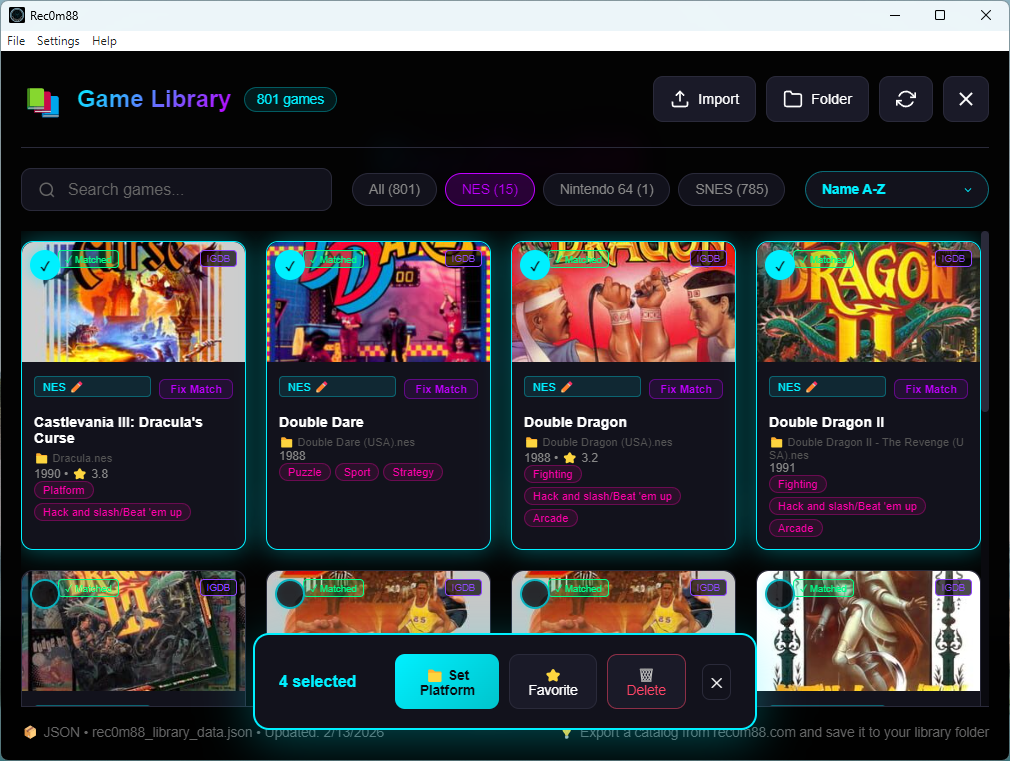
Manage your ROM library right inside Rec0m88! Organize, browse, and launch your games with beautiful cover art and detailed information.
Organize ROMs
Sort by system, genre, or favorites
Cover Art
Beautiful game covers auto-fetched
Favorites
Quick access to your top games
Search
Find any game instantly
Fix Matches
Correct RAWG or IGDB game matches
Delete Entry
Remove games from DB, keep your ROMs
Inhoud en configuratie laden
Rec0m88 automatically detects the system for any game based on its file extension
(e.g., .sfc, .psx). For systems that require a BIOS file,
the game will not launch until the correct file is configured.
.zip-bestanden worden ook ondersteund. If you load a .zip file, you will be prompted to choose the correct system from a list.
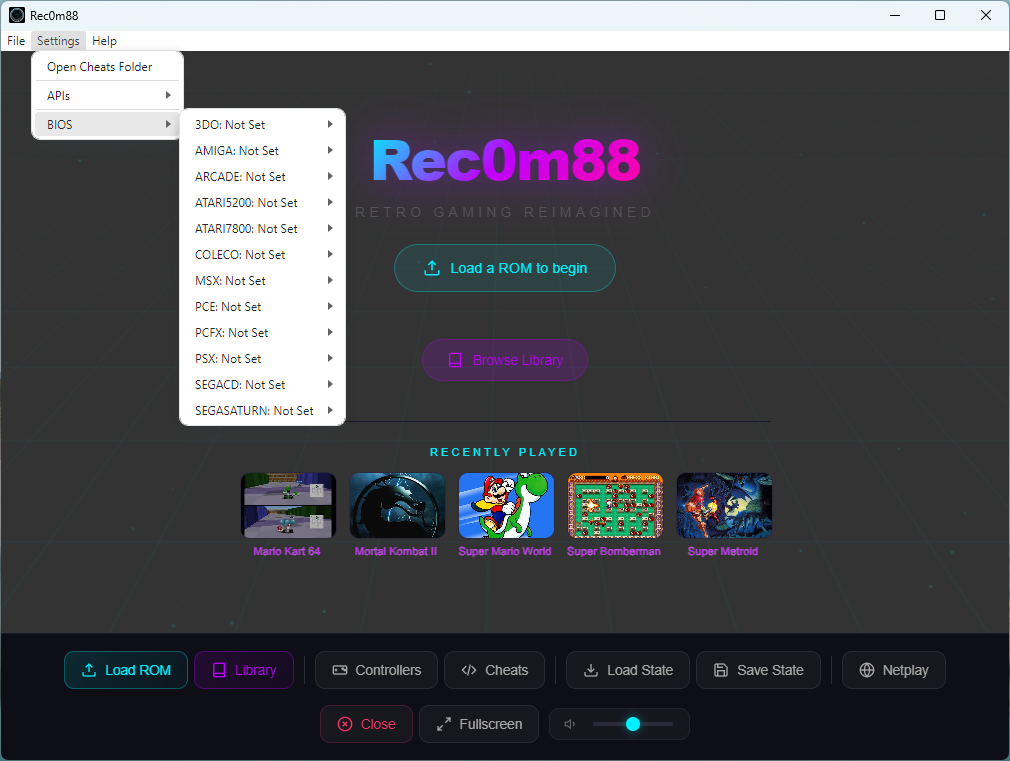
How to Set a BIOS File
- From the top menu bar, navigate to Settings → BIOS.
- Ga in de lijst die verschijnt met je muis over het systeem dat je wilt configureren (bijvoorbeeld PSX).
- A sub-menu will open. Click on Change…
- Er verschijnt een venster met een bestandsbrowser. Zoek het juiste BIOS-bestand op je computer en selecteer het.
- De status wordt bijgewerkt van “Niet ingesteld” en je bent klaar om games te spelen voor dat systeem!
How to Configure API Keys (RAWG & IGDB)
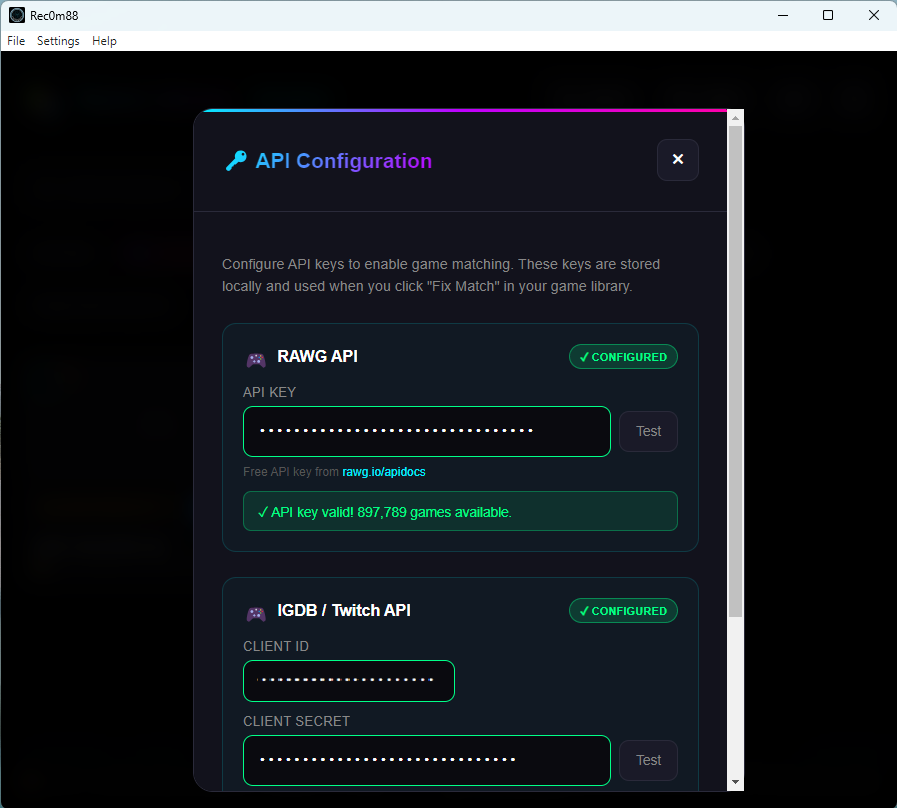
To enable automatic game cover art and metadata fetching in the Game Library Manager, you’ll need to configure your RAWG and/or IGDB API keys. These services provide the game information and artwork that makes your library look amazing.
Setting Up Your API Keys
- From the top menu bar, navigate to Settings → APIs.
- You’ll see input fields for both RAWG API-sleutel en IGDB API Key.
- Enter your API key(s) in the corresponding field(s).
- Klik op Save to apply your changes.
- The Game Library Manager will now fetch cover art and game details automatically!
Don’t have API keys yet? Visit our detailed guide to learn how to obtain free API keys from both RAWG and IGDB:
Get Your API Keys – Full InstructionsHow to Add & Edit Cheat Files (v1.1.1+)
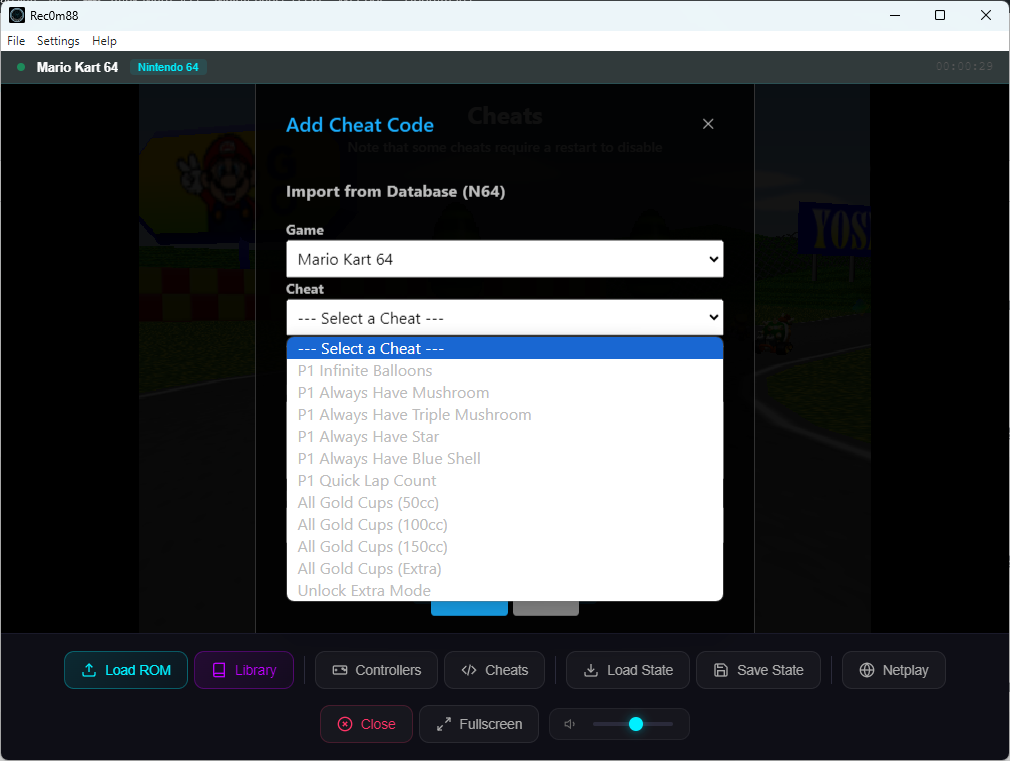
Rec0m88 uses JSON files to store and load cheat codes. These files are saved in a persistent user data folder, which means they will not be deleted, reverted, or removed when the application updates.
- From the top menu bar, navigate to Settings.
- Click on Open Cheats Folder.
- De bestandsverkenner van je besturingssysteem opent de map met de cheat JSON-bestanden (bijv,
psx.json,snes.json). - Je kunt de JSON-bestanden nu naar behoefte bewerken, toevoegen of verwijderen. Rec0m88 leest automatisch de bijgewerkte bestanden bij het opstarten of wanneer een spel wordt geladen.
Disclaimer: Rec0deD:88 does not provide and is not affiliated with the distribution of BIOS files or game ROMs. Users are responsible for sourcing their own legally-obtained files.
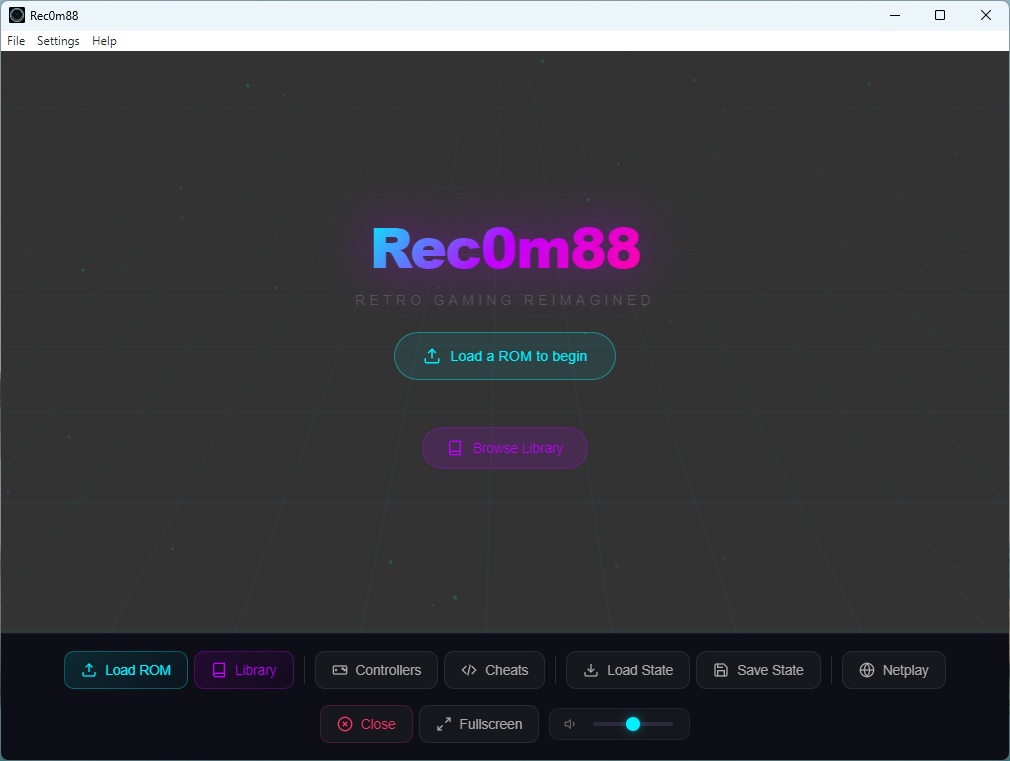
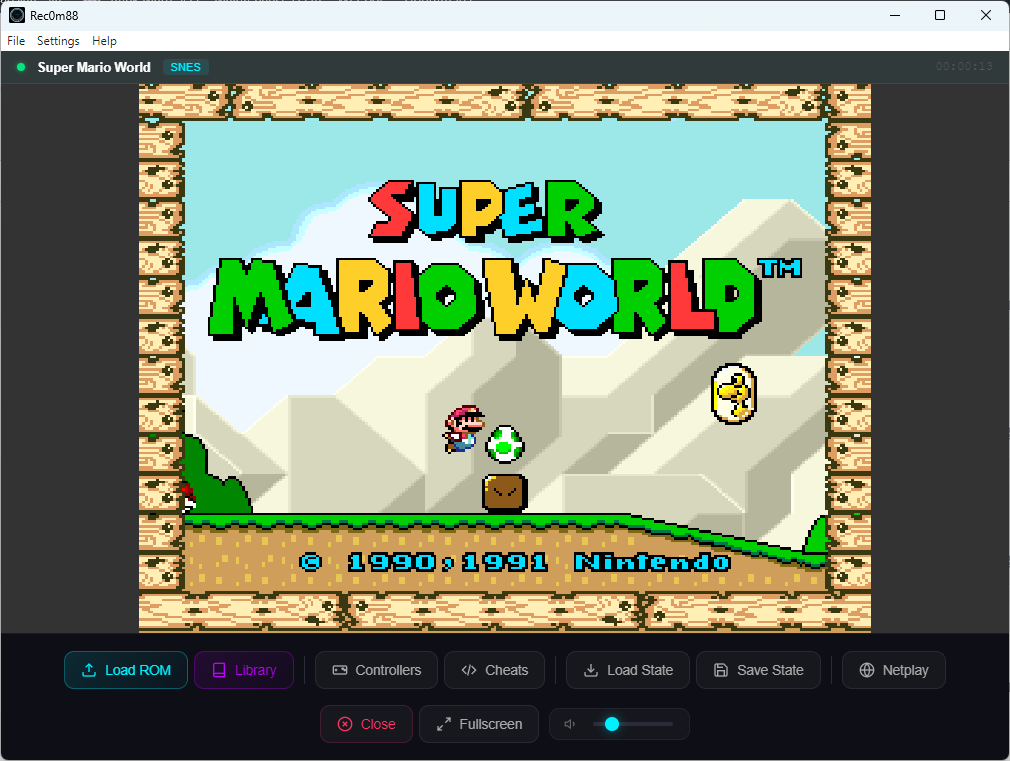
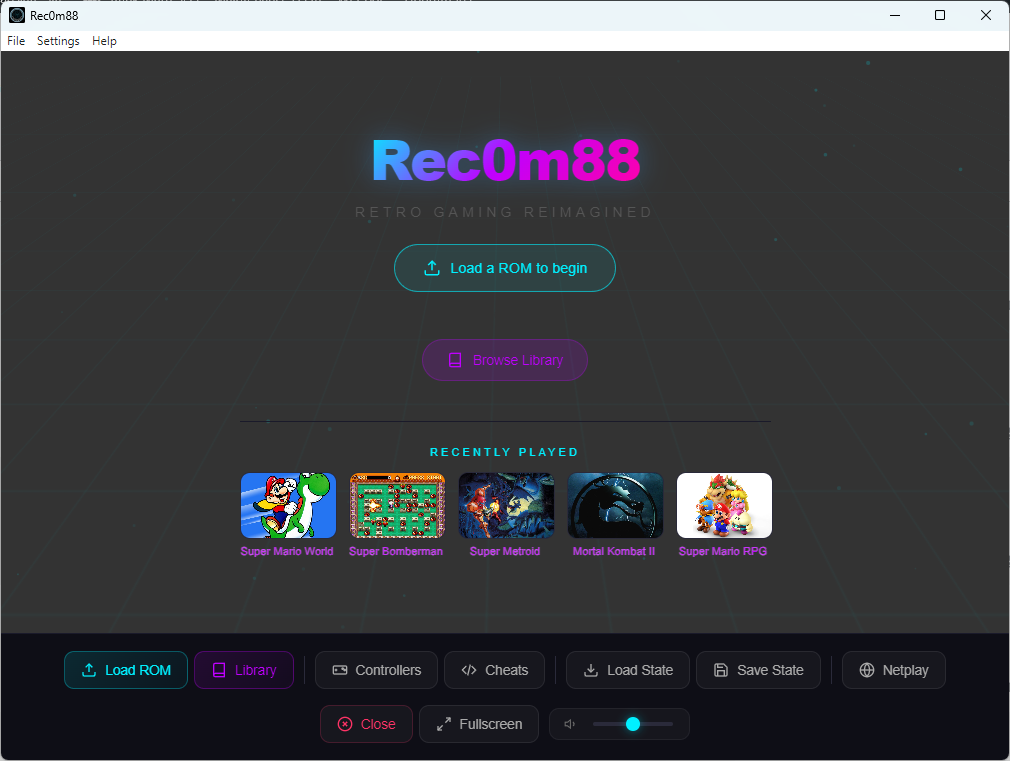
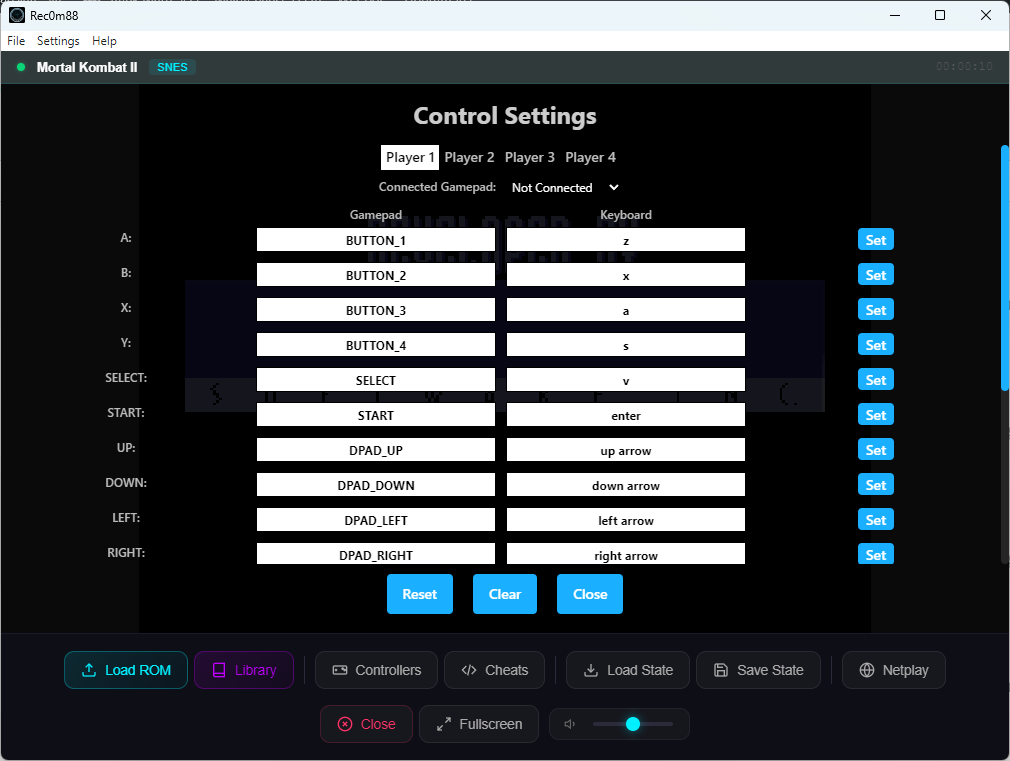
See Rec0m88 in Action
Screenshots from the latest version
Downloaden Rec0m88
Rec0m88 is helemaal gratis. Download de nieuwste versie voor uw besturingssysteem hieronder.
Installatiegids
Installeren op Windows
- Downloaden
Rec0m88-Setup.exebestand. - Zoek het gedownloade bestand in uw
Downloadsmap. - Dubbelklik op de
.exebestand om het installatieprogramma uit te voeren. - Volg de aanwijzingen op het scherm om de installatie te voltooien. Mogelijk ziet u een waarschuwing voor Windows Defender SmartScreen; klik op “Meer info” en vervolgens op “Toch uitvoeren”.”
Installeren op macOS
- Downloaden
.dmgbestand. - Open het gedownloade bestand. Er verschijnt een nieuw venster.
- Sleep de
Rec0m88.apppictogram in uwToepassingenmap. - Belangrijk: De eerste keer dat je de app opent, moet je er met de rechtermuisknop (of Control-klik) op klikken en selecteren Open uit het menu.
- Er verschijnt een waarschuwingsvenster. Klik op de Open om te bevestigen.
- Als de app nog steeds geblokkeerd is, open dan Systeeminstellingen → Privacy en veiligheid.
- Scroll naar beneden naar het gedeelte “Beveiliging”. Je ziet een bericht over “Rec0m88”. Klik op de Toch toestaan of Toch open knop.
- Je zou Rec0m88 nu normaal moeten kunnen openen vanuit je map Toepassingen of Launchpad.
Installeren op Linux (AppImage)
AppImages zijn afzonderlijke, op zichzelf staande bestanden die op de meeste Linux-distributies draaien zonder installatie.
Eerste installatie:
- Downloaden
.appafbeeldingbestand voor uw systeemarchitectuur (bijv,Rec0m88-amd64.AppImage). - Open je bestandsbeheer en navigeer naar het gedownloade bestand.
- Make it Executable: Right-click the file, go to Properties (or Permissions), and check the box that says “Allow executing file as program” or “Is executable”.
- Alternatively, use the terminal:
chmod +x Rec0m88.AppImage - Dubbelklik op het AppImage-bestand om Rec0m88 uit te voeren.
Toevoegen aan je menu/taakbalk Toepassingen:
Om Rec0m88 eenvoudig te starten zoals elke andere applicatie, kun je een tool zoals AppImageLauncher gebruiken (aanbevolen) of handmatig een bureaubladinvoerbestand maken.
- AppImageLauncher: Install this utility once. When you open Rec0m88 for the first time, it will prompt you to integrate it into your system.
- Manual Integration: Move the
.appafbeeldingfile to~Toepassingen/. Many modern Linux environments will automatically pick up the application.
Rec0m88 bijwerken:
- Download de nieuwste
.appafbeeldingbestand van de bovenstaande link. - Vervang de oude
.appafbeeldingfile with the new one. - That’s it! Your settings and save files are stored separately.
Changelog
-
v3.1.0 (2/13/2026)
- UI Enhancements
- NEW: Recently Played Games Strip — Shows last 5 games with thumbnails on the idle screen
- NEW: Now Playing Status Bar — Shows game title, platform badge, and live play timer above the game area
-
v3.0.0 (2/11/2026)
- NEW: Game Library Manager
- Manage your ROM library right inside Rec0m88!
- Featuring game covers and details!
- Get started with our ROM Library Organizer
-
v2.1.0 (2/2/2026)
- MASSIEVE netplay herstructurering voor superieur netplay!
- NEW: Added netplay messaging!
- Netplay guest audio fix
- MASSIVE cheats file update with working codes
-
v2.0.0 (1/13/2026)
- Moved to our own domain! Rec0m88.com
- Netplay stability fix – now lagless (depending on your connection)
- Netplay audio fix
- Netplay video shift fix
-
v1.1.1 (11/07/2025)
- Cheat files are now editable
- Fixed save state naming inconsistency
- Switched back to AppImage builds for Linux
-
v1.1.0 (10/29/2025)
- Backend emulator performance enhancements
- Ondersteuning voor cheatcodes toegevoegd
- Added embedded cheat codes for NES, SNES, N64, Sega Genesis, and PlayStation
-
v1.0.4 (09/30/2025)
- Netplay performance and stability enhancements
-
v1.0.3 (09/12/2025)
- Changed Linux build from AppImage to .deb package
- Added automatic update checking on startup
- Added manual “Check for Updates” in Settings menu
-
v1.0.2 (09/09/2025)
- Fixed netplay host canvas centering
- Resolved ‘About’ window issue on macOS
- Implemented alphabetical sorting of BIOS menu
-
v1.0.1 (09/06/2025)
- Initial public release of Rec0m88