

Rec0m88
The Ultimate Retro Gaming Emulator with seamless Netplay. Rediscover the classics on Windows, macOS, and Linux.
Detecting your OS…Why Choose Rec0m88?
Built for gamers, by gamers. Experience retro gaming like never before.
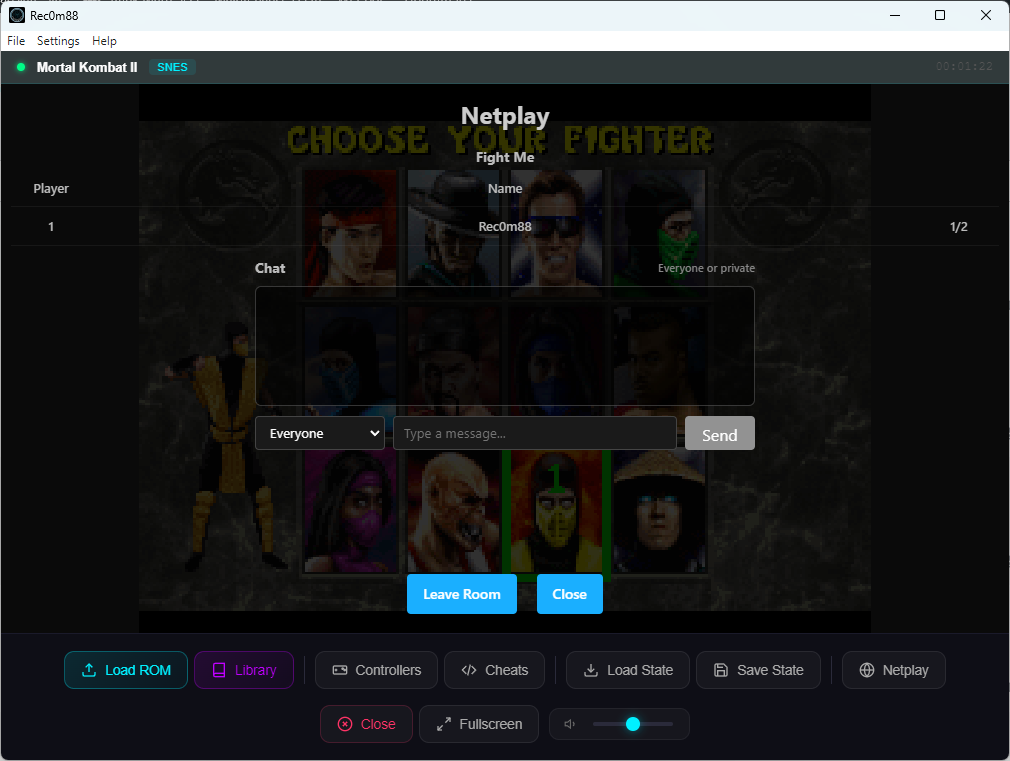
Seamless Netplay
Connect with friends and relive your favorite multiplayer games online with our simple and secure netplay server.
Note: For netplay to work, all players must be using the exact same game file.
Save & Load States
Never lose your progress again. Instantly save your exact spot in any game and load it back up anytime.
Cross-Platform
Built for everyone. Enjoy the same great experience whether you’re on Windows, macOS, or Linux.
Supported Systems
18 classic consoles, one powerful emulator.
Game Library Manager
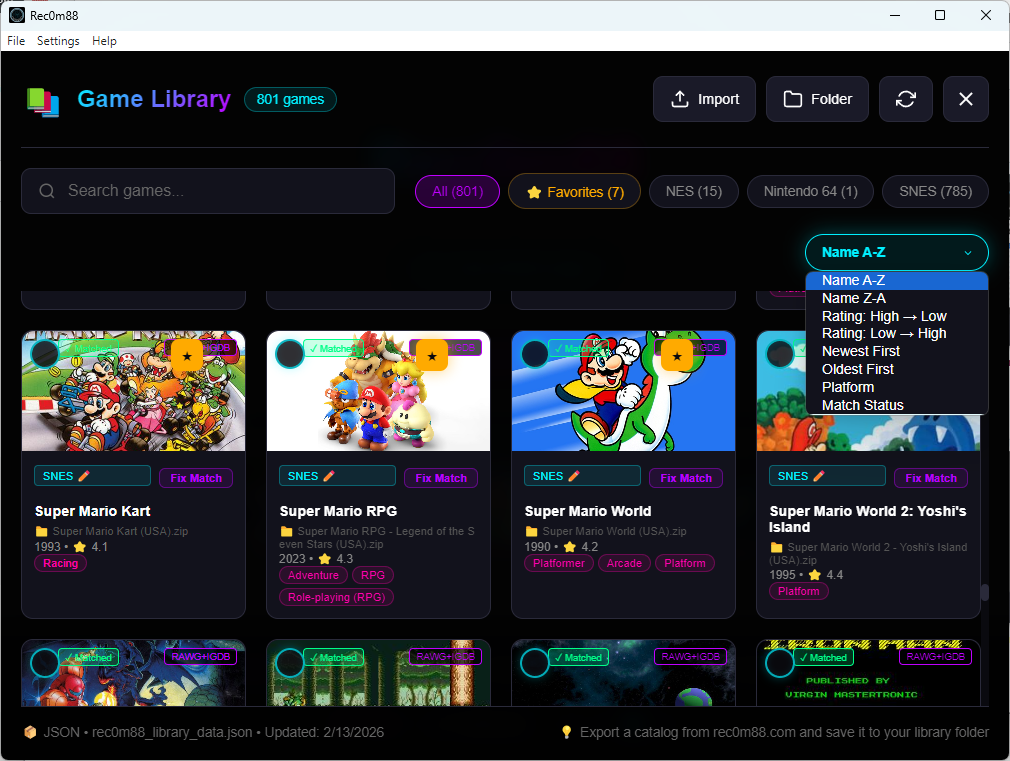
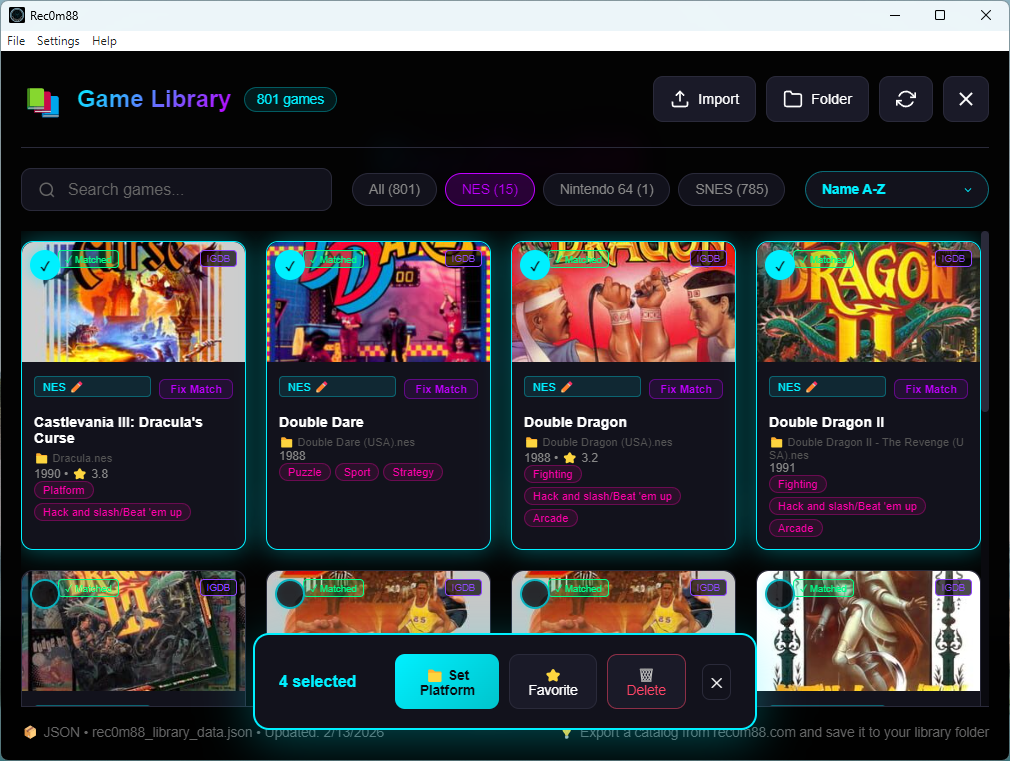
Manage your ROM library right inside Rec0m88! Organize, browse, and launch your games with beautiful cover art and detailed information.
Organize ROMs
Sort by system, genre, or favorites
Cover Art
Beautiful game covers auto-fetched
Favorites
Quick access to your top games
Search
Find any game instantly
Fix Matches
Correct RAWG or IGDB game matches
Delete Entry
Remove games from DB, keep your ROMs
Loading Content & Configuration
Rec0m88 automatically detects the system for any game based on its file extension
(e.g., .sfc, .psx). For systems that require a BIOS file,
the game will not launch until the correct file is configured.
.zip files are supported too. If you load a .zip file, you will be prompted to choose the correct system from a list.
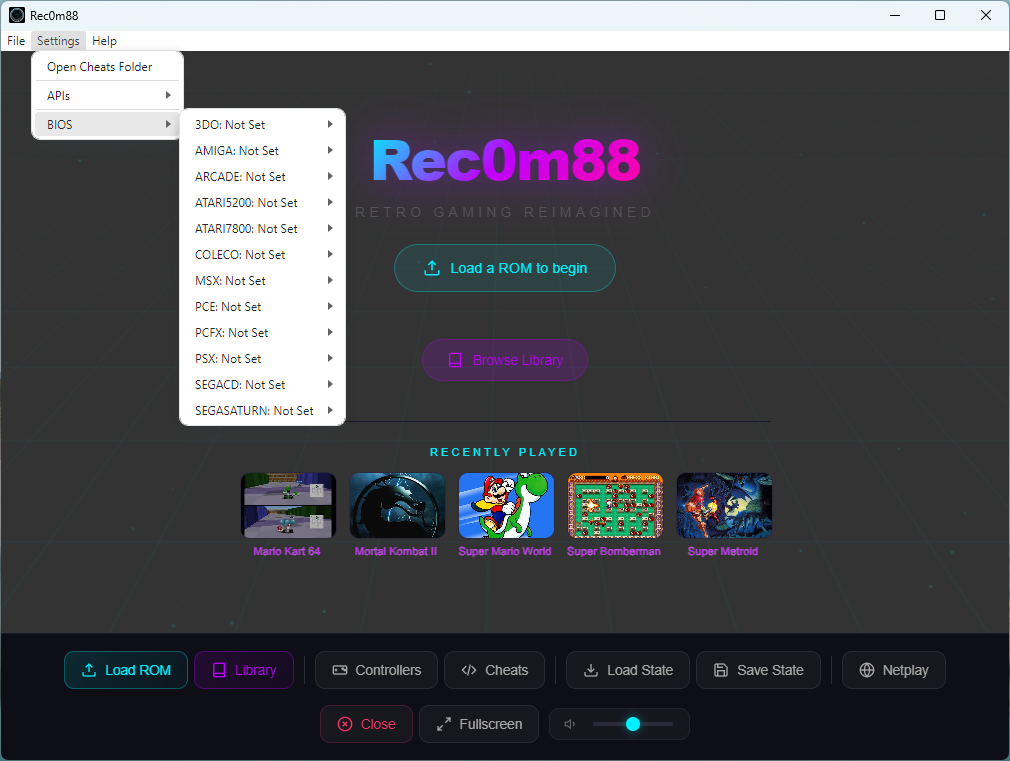
How to Set a BIOS File
- From the top menu bar, navigate to Settings → BIOS.
- In the list that appears, hover your mouse over the system you wish to configure (e.g., PSX).
- A sub-menu will open. Click on Change…
- A file browser window will pop up. Locate the correct BIOS file on your computer and select it.
- The status will update from “Not Set”, and you’re ready to play games for that system!
How to Configure API Keys (RAWG & IGDB)
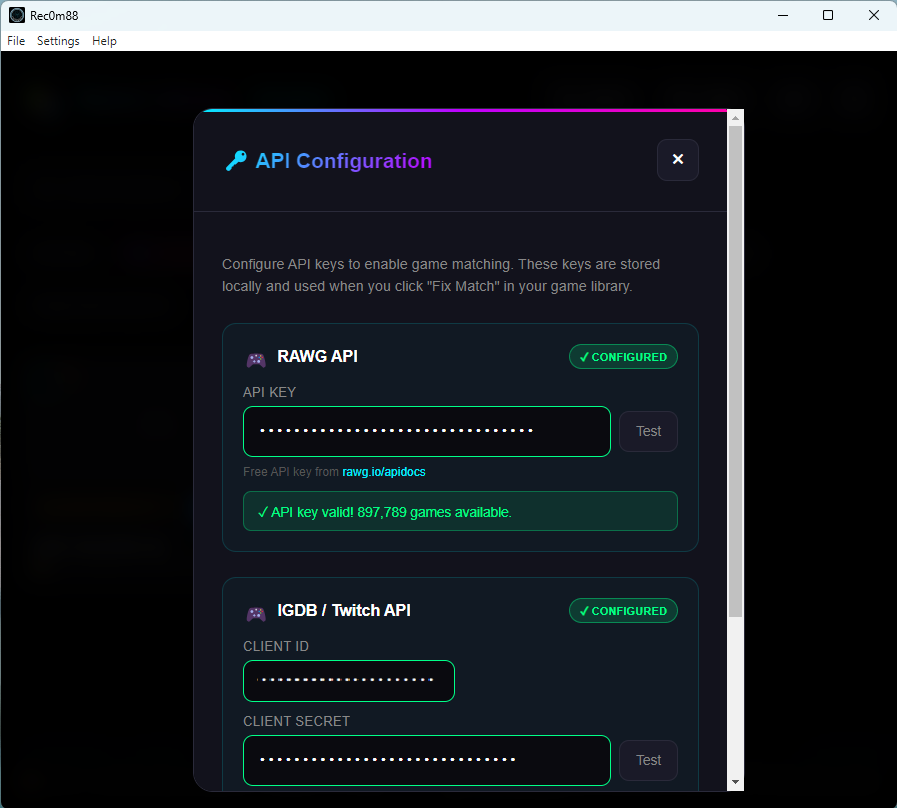
To enable automatic game cover art and metadata fetching in the Game Library Manager, you’ll need to configure your RAWG and/or IGDB API keys. These services provide the game information and artwork that makes your library look amazing.
Setting Up Your API Keys
- From the top menu bar, navigate to Settings → APIs.
- You’ll see input fields for both Klíč API RAWG a IGDB API Key.
- Enter your API key(s) in the corresponding field(s).
- Klikněte na Save to apply your changes.
- The Game Library Manager will now fetch cover art and game details automatically!
Don’t have API keys yet? Visit our detailed guide to learn how to obtain free API keys from both RAWG and IGDB:
Get Your API Keys – Full InstructionsHow to Add & Edit Cheat Files (v1.1.1+)
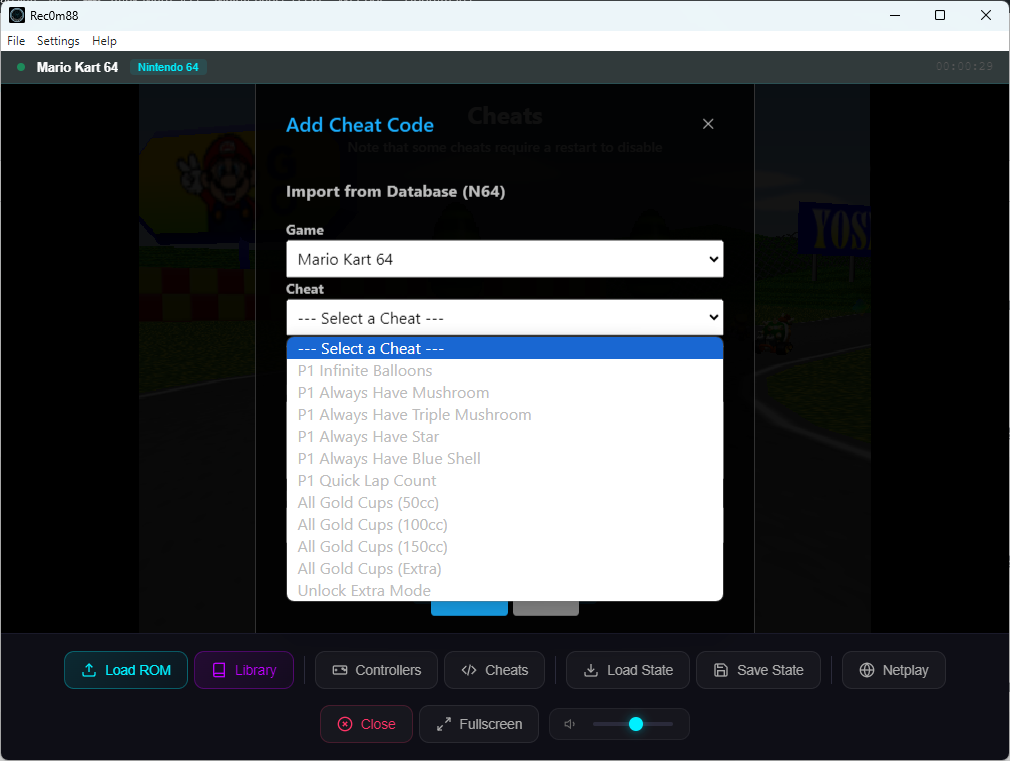
Rec0m88 uses JSON files to store and load cheat codes. These files are saved in a persistent user data folder, which means they will not be deleted, reverted, or removed when the application updates.
- From the top menu bar, navigate to Settings.
- Click on Open Cheats Folder.
- Your operating system’s file explorer will open the directory containing the cheat JSON files (e.g.,
psx.json,snes.json). - You can now edit, add, or remove the JSON files as needed. Rec0m88 will automatically read the updated files on launch or when a game is loaded.
Disclaimer: Rec0deD:88 does not provide and is not affiliated with the distribution of BIOS files or game ROMs. Users are responsible for sourcing their own legally-obtained files.
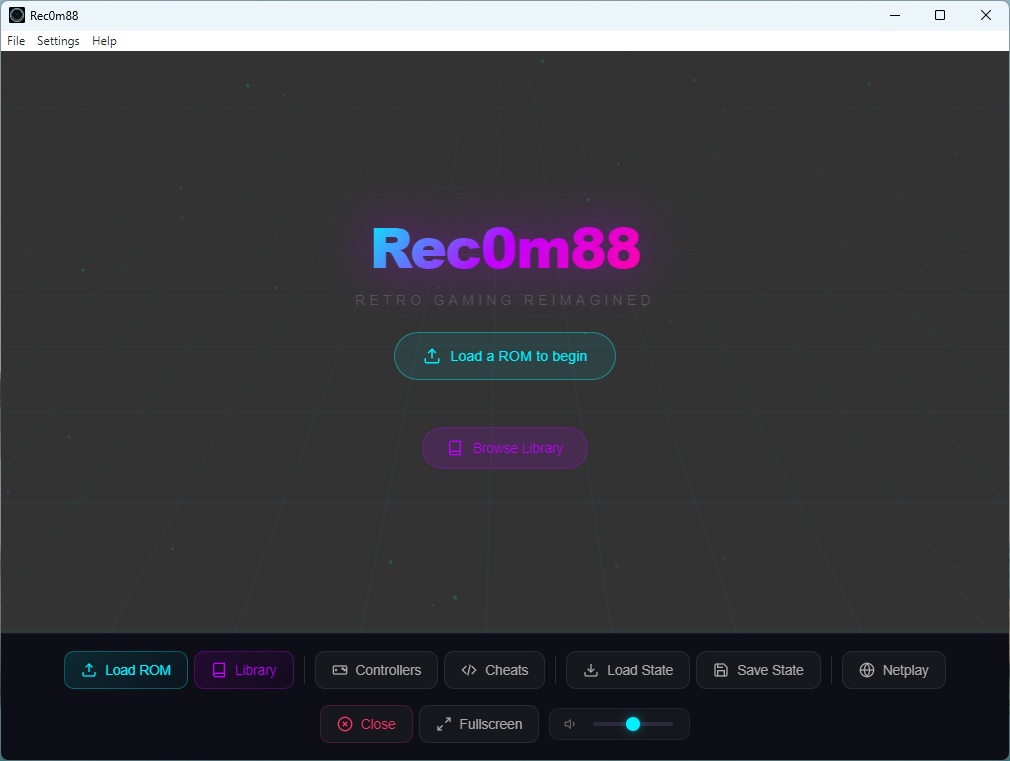
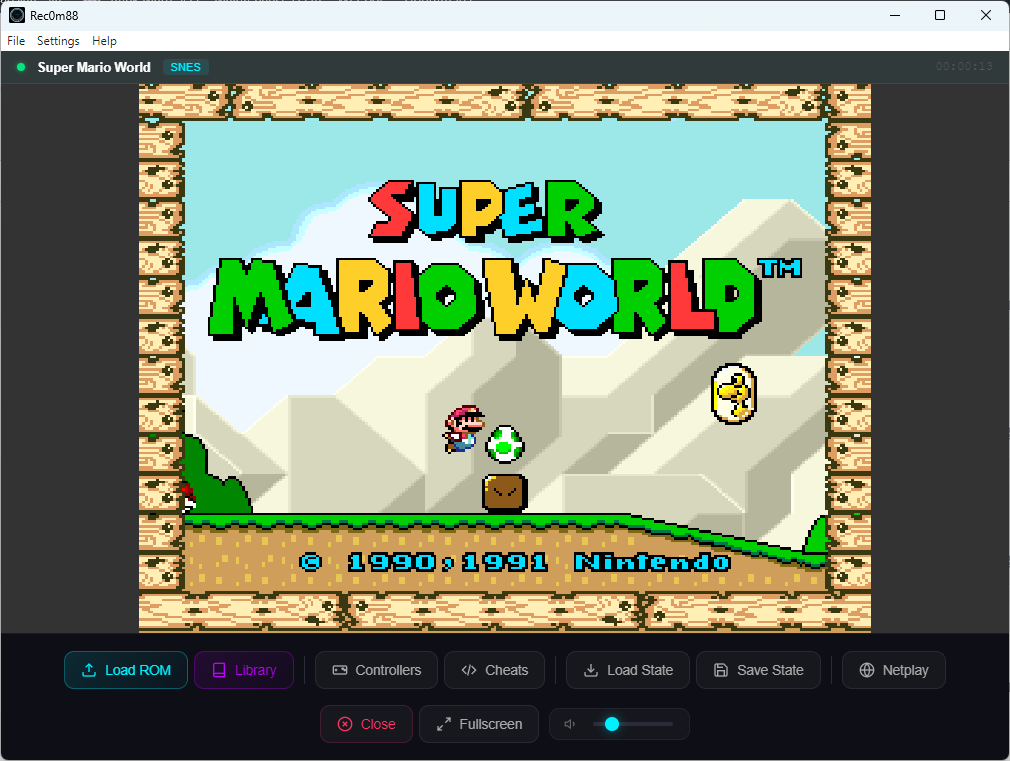
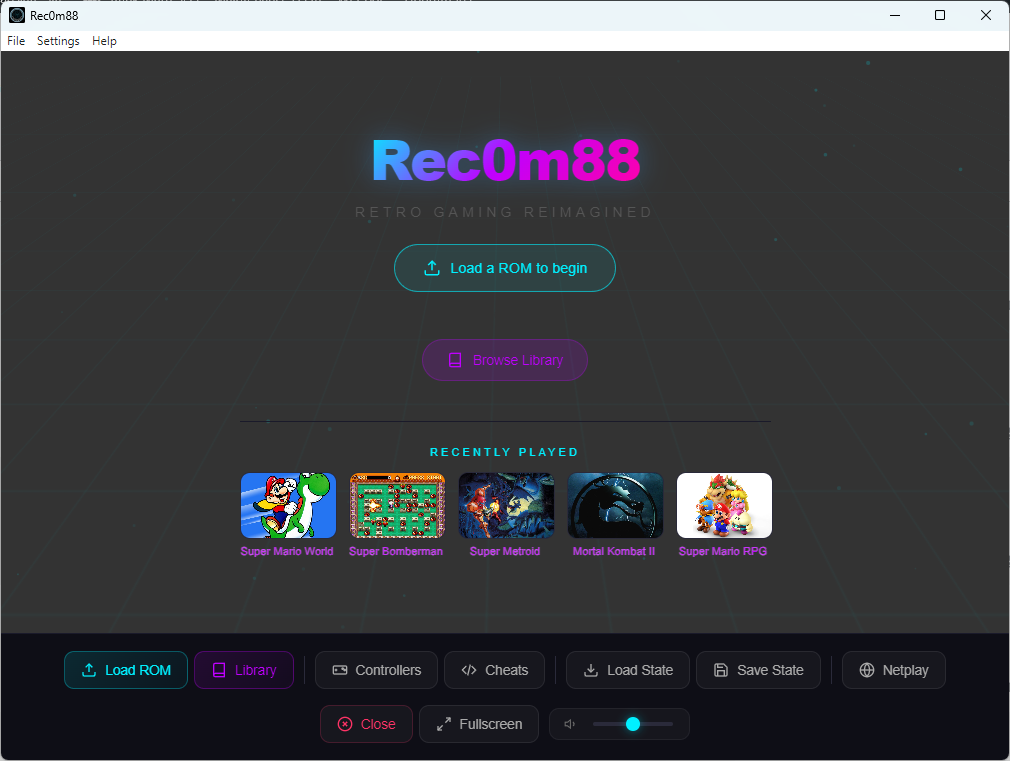
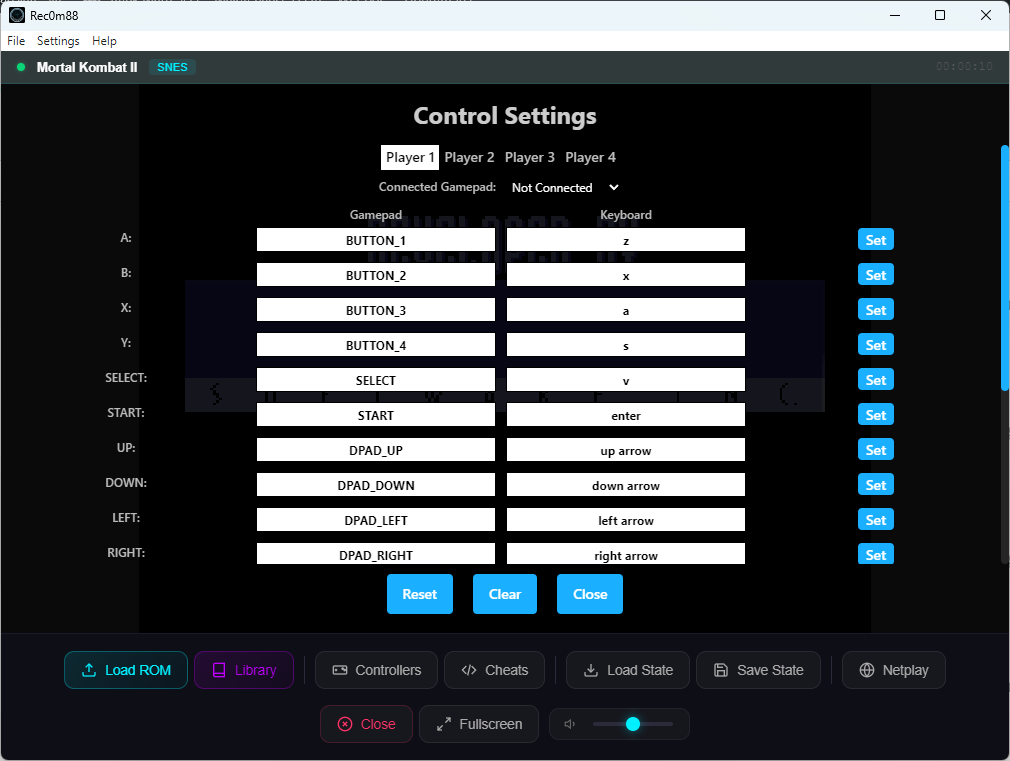
See Rec0m88 in Action
Screenshots from the latest version
Stáhnout Rec0m88
Rec0m88 is completely free. Download the latest version for your operating system below.
Installation Guide
Installing on Windows
- Download the
Rec0m88-Setup.exefile. - Find the downloaded file in your
Downloadsfolder. - Double-click the
.exefile to run the installer. - Follow the on-screen prompts to complete the installation. You may see a Windows Defender SmartScreen warning; click “More info” and then “Run anyway.”
Installing on macOS
- Download the
.dmgfile. - Open the downloaded file. A new window will appear.
- Drag the
Rec0m88.appicon into yourApplicationsfolder. - Important: The first time you open the app, you must right-click (or Control-click) it and select Open from the menu.
- A warning dialog will appear. Click the Open button to confirm.
- If the app is still blocked, open System Settings → Privacy & Security.
- Scroll down to the “Security” section. You will see a message about “Rec0m88”. Click the Allow Anyway or Open Anyway button.
- You should now be able to open Rec0m88 normally from your Applications folder or Launchpad.
Installing on Linux (AppImage)
AppImages are single, self-contained files that run on most Linux distributions without installation.
First-Time Setup:
- Download the
.AppImagefile for your system architecture (e.g.,Rec0m88-amd64.AppImage). - Open your file manager and navigate to the downloaded file.
- Make it Executable: Right-click the file, go to Properties (or Permissions), and check the box that says “Allow executing file as program” or “Is executable”.
- Alternatively, use the terminal:
chmod +x Rec0m88.AppImage - Double-click the AppImage file to run Rec0m88.
Adding to your Applications Menu/Taskbar:
To easily launch Rec0m88 like any other application, you can use a tool like AppImageLauncher (recommended) or manually create a desktop entry file.
- AppImageLauncher: Install this utility once. When you open Rec0m88 for the first time, it will prompt you to integrate it into your system.
- Manual Integration: Move the
.AppImagefile to~/Applications/. Many modern Linux environments will automatically pick up the application.
Updating Rec0m88:
- Download the newest
.AppImagefile from the link above. - Replace the old
.AppImagefile with the new one. - That’s it! Your settings and save files are stored separately.
Changelog
-
v3.1.0 (2/13/2026)
- UI Enhancements
- NEW: Recently Played Games Strip — Shows last 5 games with thumbnails on the idle screen
- NEW: Now Playing Status Bar — Shows game title, platform badge, and live play timer above the game area
-
v3.0.0 (2/11/2026)
- NEW: Game Library Manager
- Manage your ROM library right inside Rec0m88!
- Featuring game covers and details!
- Get started with our ROM Library Organizer
-
v2.1.0 (2/2/2026)
- MASSIVE netplay restructure for supreme netplay!
- NEW: Added netplay messaging!
- Netplay guest audio fix
- MASSIVE cheats file update with working codes
-
v2.0.0 (1/13/2026)
- Moved to our own domain! Rec0m88.com
- Netplay stability fix – now lagless (depending on your connection)
- Netplay audio fix
- Netplay video shift fix
-
v1.1.1 (11/07/2025)
- Cheat files are now editable
- Fixed save state naming inconsistency
- Switched back to AppImage builds for Linux
-
v1.1.0 (10/29/2025)
- Backend emulator performance enhancements
- Added support for cheat codes
- Added embedded cheat codes for NES, SNES, N64, Sega Genesis, and PlayStation
-
v1.0.4 (09/30/2025)
- Netplay performance and stability enhancements
-
v1.0.3 (09/12/2025)
- Changed Linux build from AppImage to .deb package
- Added automatic update checking on startup
- Added manual “Check for Updates” in Settings menu
-
v1.0.2 (09/09/2025)
- Fixed netplay host canvas centering
- Resolved ‘About’ window issue on macOS
- Implemented alphabetical sorting of BIOS menu
-
v1.0.1 (09/06/2025)
- Initial public release of Rec0m88